 SEGLY
SEGLY
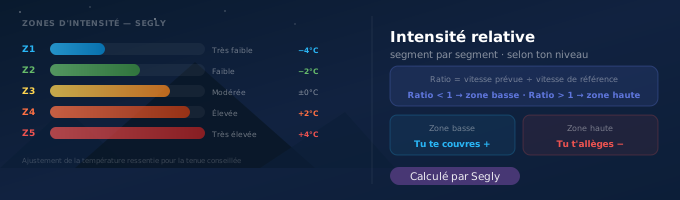
An average speed of 10 km/h means nothing on its own: it's easy for one runner, exhausting for another. Segly now calculates, segment by segment, the relative intensity at which you will actually be running — and even adjusts your recommended outfit accordingly. Here's how it works.
The problem with a pace shown in km/h
A race plan that says “10 km/h on this segment” tells you nothing about the real effort involved. For an elite runner, 10 km/h uphill may be a recovery pace. For someone else, it's already the red zone.
It's the same principle that led to %VMA zones in running or %FTP zones in cycling: rather than absolute speed or power thresholds, relative effort levels tailored to each person. Segly now applies this logic to every segment of your course.
How Segly calculates your intensity
1. The expected speed on the segment
For each segment, Segly already estimates an expected speed that takes elevation gain into account, not just distance. This is called effort speed: a kilometre with 100 m of D+ counts as two flat kilometres, to reflect the effort actually required.
2. Your reference speed, based on your level
Each Segly profile has a level score (from 0 to 1000). This score is converted into a reference speed — the effort-pace Segly estimates as your “normal” rhythm on this type of terrain, somewhere between a pure power-hiking pace (score close to 0) and an elite ultra runner's pace (score close to 1000).
3. The relative intensity ratio
By dividing your expected speed on the segment by your reference speed, Segly gets a relative intensity ratio:
- Ratio around 1 → you're running at your “normal” pace
- Ratio above 1 → you're pushing harder than usual
- Ratio below 1 → you're below your reference pace
4. Five zones, as with VMA
| Zone | Intensity |
|---|---|
| Zone 1 | Very low |
| Zone 2 | Low |
| Zone 3 | Moderate |
| Zone 4 | High |
| Zone 5 | Very high |
A concrete example, taken from a real plan in the app: on a segment where the expected speed is 14.9 effort-km/h and the runner's reference speed is 14.7 effort-km/h, the ratio is 101% — which places the segment in zone 4, high. The detailed calculation is shown directly beneath the zone badge in the app, so it is never a black box.
What it changes in practice: the recommended outfit
Intensity doesn't just inform you — it directly adjusts another Segly feature: the perceived temperature, and therefore the recommended outfit.
The harder you push, the more your body heats up and sweats; the lower your zone (power-hiking, walking), the faster you cool down. Segly translates this by shifting the actual temperature before applying it to the clothing rules:
| Intensity zone | Temperature adjustment |
|---|---|
| Zone 1 — Very low | −4 °C |
| Zone 2 — Low | −2 °C |
| Zone 3 — Moderate | 0 °C |
| Zone 4 — High | +2 °C |
| Zone 5 — Very high | +4 °C |
In practical terms: a zone 1 segment at an actual 8 °C is treated as 5 °C under the clothing rules — you'll dress more warmly. A zone 5 segment at an actual 8 °C is treated as 11 °C — Segly recommends a lighter outfit, because you generate more heat. In the same weather, two segments of the same course can therefore have different recommended outfits, simply because one is run by pushing hard and the other by conserving effort.
Why it's more useful than a global fatigue factor
A fatigue factor applied uniformly across the whole race remains an approximation. Intensity zones, on the other hand, are recalculated segment by segment, based on the actual profile of the terrain and your level: a rolling flat section can stay in zone 3 while the next climb switches to zone 5, even with the same fatigue factor declared at the start.
It also helps you spot, before the start, the segments where you will really dig into your reserves — and therefore where to pay particular attention to nutrition, hydration, or simply mental focus.
Key takeaways
- Segly calculates a relative intensity per segment, not an absolute speed: the same principle as %VMA or %FTP zones.
- The calculation compares your expected effort speed (distance + D+/100, divided by the segment time) with your reference speed for your level.
- Five zones, from very low to very high, with the detail of the calculation shown directly in the app.
- Intensity automatically adjusts the perceived temperature used for your recommended outfit: you dress warmer in low zones, lighter in high zones.
- Goal: identify before the race the segments that will really cost you, not just the ones with the most D+.
Also read
Want to see your own intensity zones? Import your GPX on segly.vo2run.app and check, segment by segment, the relative intensity for your level and the recommended outfit that follows.